Showing posts with label Softwares. Show all posts

Saturday, May 01, 2010

Hardware Accelerated Adobe Flash Plugin for OSX

After using OSX for one and a half years now, there is one thing that I notice. The Macbook tends to get very hot while watching Flash videos (YouTube and Vimeo are two popular sites that use Flash technology) and while visiting Flash heavy sites (Fashion sites, I am looking at you!). Apparently, it is Apple's reluctance to provide low level APIs to the GPU that causes this problem. The current version of Flash decodes video using the CPU. This method is taxes the CPU heavily, and thus making the Macbook able to fry some eggs while I watch Susan Boyle proving Simon Crowell wrong over and over and over again...

The good news is, Apple has provided just that API along with the OS X 10.6.3 update some weeks ago,. Adobe took advantage of that update, and has provided a beta of Flash Player 10.1 Gala for public testing.

Once I know of this, I immediately downloaded this version, installed it, and use my (still favourite) Firefox for a spin in YouTube. Well, I have a positive feeling about this. CPU usage dropped, and my thighs aren't charred while watching the videos. While Adobe said that it won't be go out as part of the Flash Player 10.1 release, I eagerly await the final, refined release. Until then, I will continue to use this beta version.

CJ

Thursday, April 02, 2009

Firefox Personas

 
Firefox Personas is a new way of skinning the browser.  This difference between Firefox Personas and normal themes is the fact that you don't have to restart Firefox to see the results. 
To be able to use Firefox Persona, you will have to install the extension from the site Get Personas and restart Firefox afterwards. After restarting you will see a new button (a fox) at the bottom right of the window. Clicking on that button will reveal a menu allowing you to choose an array of categories.
Hovering over one of the theme's name will cause Firefox to apply the theme immediately as preview. Clicking on it will apply the theme permeanently. In case your mood changes, you can just go back to the menu and choose another theme rightaway.


Seehua

Friday, March 13, 2009

Passwords you should never use

Thinking of protecting your system with a password, head over to this site and never ever use those listed!

Tuesday, December 16, 2008

Creating PDF files


Portable Document Format, or PDF is a file format created by Adobe Systems early in the last decade to help save documents.

As for casual users like us, PDF is a good way to archive our documents, whether it is a web page, reports, spreadsheets, and presentations. I usually use the format to archive web pages because it will only create one complete file instead of creating a html page with an accompanying folder as with the "save" option. A PDF file will also retain it's looks wherever it is viewed on, which is important for obvious reasons. We won't want our documents to change it's looks and formating when we take them out for printing (disasterous when your hard created 100 page thesis gets skewed at the printing shop :P, happens with Word files all the time).

To create PDF files, we will first need to install a PDF creation software, a popular one is the PDF Creator. There is of course the allmighty Adobe Acrobat Professional, but the software is usually out of our (wallet's) reach. Mac OSX users are lucky because they will have PDF creation capabilites built into the operating system. Install the related software and you will notice a new "printer" installed into your system. This is the main way to create PDF files, you "print" them.

To create a PDF file, open the "print" dialog from the related document that you are working on and select the PDF printer. Note that the name of the printer will differ by software. It will be known as PDF Creator if that is the software installed. For Mac OSX users, click on the PDF button (shown to the left) from the print dialog to do the same thing. Click on ok and you will get a "save" dialog.

From the save dialog you can save your to-be-created PDF file to anywhere in your system. Save it and (usually) the PDF file will open by itself in your PDF reader program (My favourite PDF reader software remains Foxit Reader).

That's all for today's guide. Till next time ;)

seehua

Wednesday, December 10, 2008

Thunderbird 3 (beta 1)

The email/messaging/contacts management counterpart to Firefox, Thunderbird had just reached the beta 1 milestone, almost 2 years behind firefox. I guess the spinoff to Mozilla Messaging had really gotten things moving again, after the neglect shown to it.

New features include:
  • Tab interface for Mail
  • Improvements to IMAP for faster message viewing
  • Improved message reader view
  • New Add-ons Manager
  • Improved Address Book interface
  • Improved import of mail from other Mail clients
  • Integration with Windows Vista search
  • Integration with Mac OS X Address Book
The tab interface will be my favourite feature out of the list. Finally I can open a few mails open in tabs for later viewing while skimming through the various newsletters that I get daily. This is much more convenient for me since i don't have to locate the mails again after I've finished processing the whole inbox...

The integration with Mac OS X  Address Book is also nice since I don't have to keep separate address books for 2 different programs. And hey, since my phone also syncs with the Address Book as well, I can always be sure that the contacts stays identical across my devices.

The Growl integration is a very very nice feature as well... Now I get all notifications coming from just one system wide notification software.

The next thing on my wish list will be integration with Quicksilver... It will be awesome when I can manipulate my mails anytime and anywhere in the system by using a simple keyboard command ;)

I'll be testing this program over the few days, though a bit unwillingly. This is because I've lost my appetite for beta programs while still learning about a completely new platform :P

Before I log off, I would like to complement Mozilla Messaging for that very nice looking page as displayed at the beginning of this post.

cheers people

seehua

Upgrading your RAM to 4GB?


While reading the "Road to Snow Leopard" series on Apple Insider, I've came across a very interesting bit:
Prior to using the Santa Rosa platform, Apple sold its laptops as only supporting a maximum of 3GB RAM because of this. However, many Original Equipment Manufacturer PC assemblers represent their machines as supporting 4GB of RAM even though the operating system can't actually make any use of a big chunk of it. With hardware that only supports 32-bit addressing, no operating system can make use of the full 4GB. However, even with Santa Rosa-style hardware that can make use of the full 4GB, the mainstream 32-bit Windows Vista still won't use more than 3.2GB or less because it can't remap MMIO.

This means that 32 bit windows systems (Vista 32 bit and Xp x86) won't be able to maximize the usage of at least 25% of the RAM should the user choose to ugrade based on recommendations by "experts" wanting to upsell more stuffs. The issue is made worse by computer systems intergrators trying to make more profit from unknowing users as stated in the following paragraphs:

One developer we consulted about the issue noted, "consumers are being scammed by [PC] OEMs on a large scale. OEMs will encourage customers to upgrade a 2GB machine to 4GB, even though the usable RAM might be limited to 2.3GB. This is especially a problem on high-end gaming machines that have huge graphics cards as well as lots of RAM."

"Microsoft even changed the way the OS reports the amount of RAM available; rumor is, due to pressure from OEMs," the developer told us. "In Vista and prior, it reported usable RAM, while in SP1 they changed it to report installed RAM ignoring the fact that much of the RAM was unusable due to overlap with video memory." And so many PC users are installing 4GB of RAM in their PCs and thinking that it is being used by the system, when in fact it is no more beneficial than if the RAM were simply poked halfway into the CD slot.

For example, Dell's top of the line $5799 Alienware gamer PC comes standard with a 1GB video card, 2GB of RAM, and 32-bit Windows Home Premium. That means the system can only possibly use 2.3GB of RAM, but Dell "recommends" users spend $250 (or $8 per month with financing) to buy a 4GB upgrade (below) that will offer them little more than bragging rights, as the 1GB video card and the roughly 750MB of other MMIO will make the extra 2GB unusable. Dell says "Upgrading your memory allows you to take full advantage of system capabilities as well as increasing system efficiency," but that's simply not true on this page.

Simple solution here. If you want to install more than 3GB of RAM, get a 64 bit Windows, else your money invested is wasted.

Do note that many older devices won't work with Windows Vista x64 because of non-existing drivers. Notable are the webcams from Logitech (they are trying to sell me newer webcams instead of writing drivers that supports vista :S).

Cheers people,

seehua
ps: On the brighter note, I am pretty happy with my new Macbook. It certainly is a lot user-friendlier than a comparable windows system, to the point that I kinda miss the gesture based UI when i get back to my old system for maintenance

Tuesday, January 29, 2008

One location to conquer them all...


Here's the deal. Due to the many times I've to fix others' computers, and most of the time I won't have my portable hard drive with me, so I always have to go to the related sites to download the things that I need. Hence, I've created a sharing space in 4Shared to store my most used programs. And as a bonus, I've decided to let you guys access the files there as well...

It's still incomplete as of now, but should have most of the programs that I've find useful to maintain my computer as well as introducing lots of convenient functions that doesn't take too much resources (check out the Texter and Launchy, they've saved me lots of time. Intro coming in the following weeks after my exam).

Hope you guys will find a central location to download things useful. You guys may access them here. Now I got to go back and hit my brain and notes again, see ya

seehua

Friday, November 16, 2007

Internet Browsers Impressions

For the last week I have been trying out 3 beta versions of the most popular alternative browsers, and i would like to share with you all my experiences here. Note that all the softwares previewed are of beta quality and should not be used on a critical system. i shall not be held responsible for and damaged system/work as a result. That being said, all the softwares have never crashed on me, so feel free to download and play with them.

Mozilla Firefox 3 Beta 1:
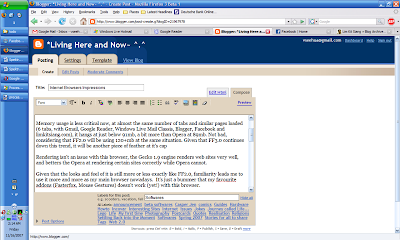
The successor to the increasingly popular Mozilla Firefox family of web-browsers, this one have big shoes to fill in. People are starting to take note of it,and a lot are switching to it after experiencing the benefits of safer browsing, the innumerable addons that are available and the easiness of it's usage.

For the last month, I have been using the Alpha 8 (Grand paradiso 8) version of Firefox 3.0, and I have to say, I am impressed by the improvements made to it.

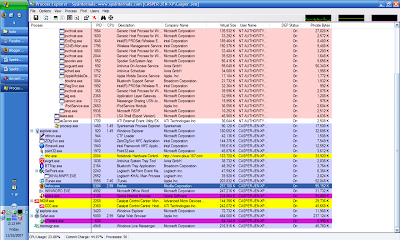
It successfully passed the ACID 2 test from the webstandards.org ensuring that I can render any sites coded according to standards properly. To take the test, you may go to this page. In addition to that, site loading times were vastly improved over that of Firefox 2.0. It's so fast that it's site loading times were almost on par with that of Opera 9.5, just a few miliseconds slower. It's memory footprint is smaller this time around, hovering at 96Mb with 5 tabs open.

It's interface looked like the one from Firefox 2 at first glance, with the one and only new element named the "places" folder at the bookmark bar. (As of now, I am still not sure of what this feature actually do, so I have no comments on it) Within the menu structure there are a few new interface upgrades over the last version. The downloads windows is now searchable, enabling me to search for downloads that I have made. The options page have an extra tab listing out the programs for most types of files. And on the security front, we have a malicious site checker that, when turned on, will warn the user from visiting a site that is potentially damaging to the computer. We will have 2 choices of malicious list to choose from, one from a public list maintained by Mozilla and another one provided by Google.

And under Linux, the Mozilla have improved on the integration with the Gnome and KDE-based desktop environments by using their default looks and buttons. This means no more ugly Firefox that doesn't follow the general looks of the desktop space.

Spell checking is still available from that program, and it will continue to assist me in writing error free posts to blogger and various forums. It's just too bad that it isn't available in the other browsers.

However, there are still a few drawbacks inherited from it's predecessors. Installing addons/themes still requires a restart, which is inconvenient. The browser still takes more time than both Safari and Opera to start up and shut down. Navigating in between pages via the forward and back buttons revealed another area where Firefox can improve in, the rerendering of pages should have taken a shorter time.

Mozilla 3 had coded a lot of improvements into the No. 2 top browser in the world, and I hope this continues on, enabling lots of people to enjoy enhanced web-browsing experience.

Note: Firefox 3.0 Beta have not been released into the public. If you want to get your hands onto it, you will have to do a bit of digging online.

Opera 9.50 Beta:
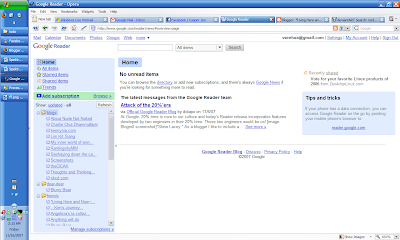
Touted by it's developers as the fastest browser in the world, Opera have it's own share of fans that will swear their life by it, and it's by no coincidence that it is so.

The page loading and rendering performance of this browser is the best so far among the three browsers previewed here today. And for convenience, the fast forward and back ward buttons estimates the most likely next page that I will be going to, a neat feature if you ask me. The memory footprint of this browser is the smallest of all, at 93mb with the same amount of tabs opened (not too small after all). This browser had also passed the ACID 2 test. Note that this memory footprint is measured without any widgets and bit-torrents running.

The other neat features of this browser is the speed dial and the widgets. Speed dial works just like how it would work on your cell phone. Whenever you opened a new tab to browse another site, there will be nine buttons, in which you can define the addresses of your most frequently visited sites. Click on one of the buttons and your destination will magically load up in the tab for your viewing pleasure. The widgets works exactly like how Yahoo! Widgets or Apple Widgets works, by putting useful pieces of applets on your screen that you can call in and out any time. The applications for the widgets will range from a simple clock on your desktop to very complex ones like stock analysis over the past few days, or even time wasters like an aquarium games

Opera gives the most amount of space within it's browser for web-surfing, which is a very good thing. It gives me more space to look over things before I need to start scrolling and the browser itself won't be a big distraction as well.

For privacy advocates, they will be pleased to know of the existence of a private surfing mode that enables them to surf the net without leaving traces behind.

The main complaints that I have for this browser is that it sometimes just failed to load some pages for some reason and just hangs there without giving a timeout. This leads it to just stay there saying that it's still loading the page. I had to stop the loading process and load the page again to get it moving, which is a tad inconvenient if you ask me. And, when the page is from a brand new site that have not been visited recently, it takes more time than both Firefox and Safari for the initial load, sometimes lasting up to 20 seconds. After that, surfing the rest of the site will be a breeze since the caching mechanism had saved a few static features of the page.

The Bit-torrent feature had failed to work on my overly complex network configuration, in which I haven't found out why.

Opera also renders some sites incorrectly, resulting in an outright ugly look of the page. So far I have only seen this happening only once, in the AMD website that I was browsing when I was looking for positions for my practical semester a few weeks ago.

The lack of an addons system does limit the potential of this browser, though it does mitigate the need for it by integrating some very powerful features that are available in Firefox only after installation of add ons (Mouse Gestures comes to the mind).

It's fast, it's compact and it's powerful. Opera is set to become better and better in the future. It might even replace Firefox as my main browser if not for the rendering problems.

Safari for Windows 3.04:
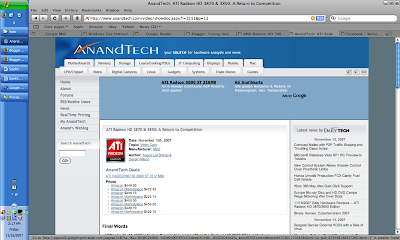

Safari is a relative newcomer to the internet browsing world under windows. It's bundled in Mac OS as the default browser, and since July this year, windows' users can also get a feel of how it feels to surf the net using Safari.

Once installed, one of the first things that I noticed about the interface is just how similar it looked like my music management/playing software, iTunes. It is clean and neat, and even with lots of tabs open it doesn't look as cluttered as Firefox can be.

Another things that people will notice is the way anti aliasing works here. it doesn't use the default windows' method to do it, but employs it's own algorithm. The result is, the fonts generally looks blurrier than normal, but are more loyal to the original shapes of the fonts. This results in a big debate on whether Apple should pursue the Mac experience with Safari, or make Windows users comfortable with it. For me, I kinda like the slight blurriness of the words. It looks better than windows fonts and made it more readable, which is important for a person who surfs the net all the time like me.

The options menu doesn't provide much options to configure the browser with, which I think is a boon for the more novice users since they will have less settings to break. The power users might be frustrated with the lack of configurations available to them though (people like me like to tweak all aspects of a program to ensure it works exactly the way we want it to) :P

Performance of this browser can be summarized as very good. It loads pages at a generally faster speed than Firefox, but a bit slower than Opera (all are at almost the same level). The memory usage, however, can be improved upon. Using 230++Mb or RAM is unacceptable for me, especially if it only have a few tabs open. I hope that Apple can fix this problem in future releases of the program, especially if they would like more and more users to use it. I have yet to encounter any rendering problems so far (except for one very poorly coded Friendster page).

It's inability to save the tab contents across browsing sessions disappointing, considering that the other two browsers previewed here have implemented this feature for quite some time already. This shortcoming can be compensated by it's ability to save groups of tabs together, which will be the first button that I will click on everything I start it up. The feature is good, and the addition of a session saving feature will certainly make up the requirements that I have for my browser.

Another gripe that I have with Safari is having to right click on downloaded items in order to start them up. In the other browsers I can just double click on the downloaded items in the download window to start it, and I would expect it to behave the same way here. Not a major complaint, but it makes up my browsing experience.

Safari have strong features to enable it to compete with the other big names in the area, but it needs a bit more polish to win it. Of the looks of the three browsers, I like Safari the most, especially the way it renders fonts. Apple would have to keep on improving on the memory footprint though, and hope the next version will use less memory.

That's all to my very subjective review of these 3 browsers, I will still continue to use Ff3.0 beta as my main browser for this time around, as it is the more familiar browser to me. Till the next time I post anything, c'ya guys, and don't get sick like me now...

Cheers

seehua
*Let's create a world full of Love~


p/s: here is a view of the memory usage of various programs in my system. This entry will be edited as i spend more time with the said browsers...
Thursday, November 08, 2007

MyPhoneExplorer


When I fist got my (now stolen) Sony Ericsson k750i, I searched high and low for resources on hacking it so that it runs the SE w800i firmware (Why, because I know it can be done, and because I know I can do it :P).

Along the way, the name MyPhoneExplorer turned up as the premier third party software to manage SE phones. Having used it for almost a year now, I can attest to the claim. This piece of freeware can do it's job, and it's damn good at it.

It enabled me to:
1. Sync my phone's contacts and organizer events with Thunderbird e-mail client (with the Lightning Organizer extension)
2. Backup and restoring my sms messages in case my phone is gone for whatever reason or when I am playing with the firmware (hacking, upgading through third party tools)
3. Send and receive sms messages via the computer
4. Explore the phone/MS card contents (It was possible to do it from Explorer with k750i, but for some reason it isn't possible under k800i unless u decided to turn off the phone to revert to the file transfer mode)
5. Sync my time with standard time kept by atomic clocks

So there you go.. If you are using a SE phone now, do give it a spin, I am pretty sure that it's functions will appeal to you as well :) You can get it here.

seehua
*Let's create a world full of Love~
i am getting busy here for the new semester, with a big project and lots of lab reports to do. And i still have to catch up on a lot of things that i didn't understand since a few sems ago. Due to that, my posting frequency will drop, hope you guys won't mind about that. On top of that, I have to prepare my cover letter and CVs and certs to apply for positions for my practical semester, which is the next semester. And somehow my services as a computer technician is getting known here -.- Perhaps i should start charging people for repairs (100 Euro per hour will do :D)


Attachment:
For resources on Sony Ericsson phones, here is a list to get you guys started:
1. Se-Nse (Firmwares, customization: Some of the tweaks described here aren't for those who are faint hearted)
2. SeGoodies (Themes)
3. Mobile9 (j2me softwares)
4. Of course, SonyEricsson.com

Saturday, January 27, 2007

What slows your computer down the most?

I had came across this page some time ago, but no i'll just put the link for everyone to view and decide for yourself. These are some of the reasons why your computer runs slower and slower and then even slower.

Here it is: What slows your computer down.

For years now, i had been advocating people to remove Norton Antivirus from their systems, as is's a massive hog on system performance, and a eats your memory for breakfast. Removing it is a pretty hard affair as it leaves a whole trace of registry entries that requires manual editing. You guys might want to try this tool to see if it works, and then leave a comment.

Here are some other tips for you guys seeking to speed your computer up without burning another hole in your pocket.

1. Many programs install themselves in such a way so that it's components with start along when you turn your computer on. The most serious offenders are iTunes, Real Player, ICQ, Yahoo Messenger, Microsoft Active Sync.

I suggest you guys go and delete these start up entries so that you can use your computer's processing power to do something more beneficial.

2. Some services that aren't essential to the operations of the computer are running. ipodservice .exe and themes are 2 of those. Note that most of the services are critical to the daily operation of Windows OS, it's better not to touch it if you don't know what you are doing. I am running with minimal services on myself, and had seen a large performance improvement as a result.

3. System errors. It's recommended that you scan your drive once in a while to make sure that the data on it are not corrupted. Corrupted files can cause massive slowdowns that will end with error messages. To scan your drive for errors, right click on the drive from 'my Computer' select properties, and select the tools tab. Click on the Scan drive button and select both options. Let it run and it will ask you to reboot. Reboot and let it finish the process.

4. Fragmented files scattered along your partition cause long delay when you are reading something from the hard drive. Defragment your drive regularly to ensure that the files are staying at one place instead of in thousands of pieces here and there on the drive.

Now, back to the startup issue. I had been using a very nice program recently that managed to clean up a lot of the junk in my laptop. It's called CCleaner (Crap Cleaner). It's simple enough for everyone to use, so I won't be talking about using it. Just note that there is a startup option within the program for you to control which programs starts up with your computer and what should not.

That's all for this post, hope you enjoyed reading it. Till next time, c'ya

seehua
*Let's create a world full of LOVE~

Sunday, December 10, 2006

Ubuntu 7.04 Feisty Fawn

After going back to stable softwares for a while (somehow almost all of the beta softwares that i had mentioned earlier got released at almost the same time), I am back to the beta testing field. This time, my victim, err, cross that, subject will be the next version of Ubuntu Linux, version 7.04 (Feisty Fawn).

Ever since the very first version of Ubuntu that I had used, i've loved it. It's very user friendly (if you can get yourself used to the idea of using the terminal (for windows users: DOS prompts), and i love the way of configuring and installing softwares.. it's just flawless.

I might write later about installing and configuring linux. So read on, guys ;)

seehua
*let's create a world full of LOVE~

Friday, November 03, 2006

Funny video about BSD

Here is another darn funny (I think only applies to me) video about BSD (Berkerly Software Distribution). For those of you who don't understand why it's that funny, well, it's for geeks like me =p

BSD is Dying

enjoy =)

seehua
*Let#s create a world full of LOVE~

Wednesday, November 01, 2006

Solution to Firefox 'Memory Leak'

For those who kept complaining that their copy of Mozilla Firefox eats their RAM for breakfast, here is a link on what it actually is and how to 'solve' it...

About the Firefox 'Memory Leak'

enjoy~


seehua
*Let's create a world full of LOVE~

Freewares that I use...

Here is a list of free (as in free beer) softwares that I had downloaded from the web for my own personal use, along with a very short description of it's usage.

1. Web Browser - Firefox: THE browser for those who wants simplicity, but can be extended to fir their own needs. While simple and elegant in design, it's support for extensions and the huge community to code myriads of extensions had won it many converts from the once insecure Internet Explorer. However, as it's market share continues to grow, more and more exploits had been associated with this software. As said, nothing can be truly safe online...

2. Image Editing - GIMP: GIMP stands for GNU Image Manipulation Program. It is a powerful image editor that rivals even the venerable Abobe Photoshop series, but without the associated costs. Many seemed to not able to get used to it's interface though, as it's a lot different from Photoshop.

3. Image Management/Viewer - Google Picasa: Voted by many tech editors are the best image management software, it's very simple yet very powerful. I use it mainly for it's intergration with Blogger and Picasa Web, as well as to browse my collection of photos easily.

4. CD/DVD Burning - CD Burner XP Pro: A decent alternative to Nero Burning ROM/Express. It's clean interface is easy enough for me to use it for everyday burning. I do test lots of Linux distributions, so disc burning had became a norm for me. and CD Burner XP Pro provides just that for free.

5. File (De)Compressions Program - 7zip: It's simple to use and supports huge amounts of compression formats, including .zip, .rar, .ace, and lots more. It's own compression mechanism, 7z provides the best compression ratio and is being adopted within the Linux community for their uses.

6. FTP Client - Filezilla: Small program and good performance for usage with ftp servers.

7. Music Management - iTunes 7.0.2: I use this music management program simple because of it's automatic sorting of my music files accordingly. While there are complaints against it's latest version for being buggy, the latest version, 7.0.2, which had just been released yesterday, seemed to had fixed more of the more serious problems. One very annoying bug that had been fixed is the cracking sound produced, finally I can play my music smoothly.

You guys might have noticed an earlier post regarding Songbird. Well, I am using it as my secondary media player, interchanging it with iTunes. It seemed to be a very promising project, and I will track it's progress all right. But for now, it's just a bit too buggy for normal consumption. If you feel adventurous, do give it a try, it's cool all right.

8. Movies (Codecs, Movie player etc.) - K-Lite Mega Codec Pack: This nifty little package contains all that you will ever need to play all kinds of media formats. And it also comes with my favourite movie player, Media Player Classic. Of course, you can opt not to install this player if you don't like a bland interface, it's codecs can work with any movie player that supports Microsoft Directshow interface.

That's all for introduction to the freewares that I am using with my own computer. It's specific to my Microsoft Windows installtion though. Under Ubuntu Linux I am using another set of softwares for the same needs. That I will dedicate another post for it.

Till next time, c'ya

seehua
*Let's create a world full of LOVE~

Saturday, October 14, 2006

Howto: Use RSS Feeds with Firefox 1.x/1.5.x

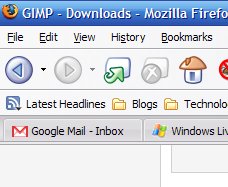
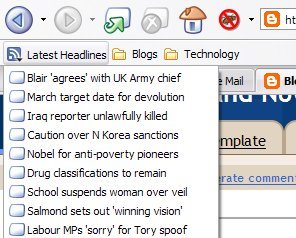
RSS (Really Simple Syndicate) is a way for websites to provides updates without needing the surfer to manually navigate to it. This is accomplished by the use of 'feeds' which are regularly updated and updated by RSS-readers. An example of RSS in action is the 'Latest Headlines' within Mozilla Firefox


This RSS Feed is always install by default with Mozilla Firefox and provides the latest updates from the British news agency BBC. I use it to check on the latest news from around the world once every few hours and middle click on the topic that interests me to read the article. Pretty handy because I don't have to go open up a new tab just to see what's new *wink wink*.

Here's how i manage my own RSS feeds.

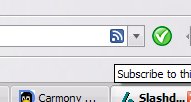
First of all, we need to determine if the site provides RSS feeds, this is indicated by an orange coloured symbol like the one shown below at the end of the address bar of Firefox. Mine looks blue because of the Firefox theme I am using changed the colour of the default icon(second picture below), but it functions the same nevertheless.


Click on it, and it will pop up a window like the one below:

From here you can choose to add to any bookmark folder that you are using. In my case, I made a folder especially for blogs which I read regularly.

Oops, I think I just revealed what I read regularly... hehe...Nevermind, it's not things that I have to hide.

Neat feature eh? Now you guys can also catch up on things faster as well. Sadly, Internet Explorer 6 that comes with Windows XP don't support RSS. The browsers that do are anything other than IE6 and released within the last 3 years like Firefox and Opera.

That's all for my Howto this time around, take care yah everyone out there=)

*It is confirmed that Internet Explorer 7 will be released as an update by Microsoft within this month, do upgrade by then because of it's enhanced security and usability features compared to IE6.

Short note: I had tested with using Opera for one week for the last week, but i still find that i like Firefox better... maybe I am just too used to the handling a web browser the Firefox way... And I find that Opera actually operates slower with my computer... Maybe i had optimized my firefox way too much for Opera to catch up=p hehe

Anyway, went fishing in class everyday.. sometimes kena ikan bilis, sometimes ikan jerung, and sometimes ikan paus... hehe... Anyway, the best part of this semester is, I HAVE 3 DAYS WEEKENDS, YAY!!!

20 things an average person don't know about Windows XP (Link)

Found out about this site from Digg. Kind of useful for you guys... Read it up, and speed up the way you use windows xp... I might write some tips on my own later, because some of the tips presented there are kind of too complex to follow, and there are alternative ways which are easier to follow. =)

enjoy

20 Thinge the Average Person Doesn't Know About Windows XP

Sunday, October 08, 2006

Hidden Gem in the Net: Songbird


While browsing some of my favourite forum sites a few months ago, I came across a thread in the Ubuntu forums detailing a new cross-platform media player called Songbird.


Well, as someone who is very curious about softwares, especially new and cutting edge ones, I went to their site, downloaded give it a spin. It's interface is very iTunes-like, which is not a bad thing since iTunes had been my default music player for more than 2 years now. It's sleek black interface is refreshing compared to those of iTunes, and also Windows Media player 10 and 11.

Behind the pretty face of Songbird is the very same engine used by Firefox web-browser. Yup, you heard it right, it's literaly Firefox modified to be a media player cum web browser. I had to commend the developers for developing an intuitive interface for Songbird, no complains here.

The performance is very good for a player that is still in it's early stages. In fact, the stable version now only have a version number of 0.2 Developers Preview RC2, meaning it's not that ready for mass public comsumption yet... So far it had been very stable during my test-run on it, so by all means, try it...

The player is still under furious development as of now, and we can expect a great many more new and cool features awaiting to be implemented. Some of the new features to be implemented are extensions and themes support... *salivating at the prospect of it being as extentible and skinnable as Firefox=p

you can evaluate for yourself the capabilites of this player from the screen cast below=)...


Do give www.songbirdnest.com a visit and see for yourself what it's all about=)

Short Notes: My new semester will start next week. According to the schedule, my studies will put more pressure on me liao...meaning no more fooling around surfing the new all the time like the last semester liao... hehe... to all out there...enjoy yourselves yah...

on the other hand, it's raining everyday here... not good...the weather is just too good for me to snuggle under my blanket and sleep... translating to more trips to dreamland suring my classes =p

Monday, September 11, 2006

I installed Linux without having to go to the console!!

hehe...Super happy now. All the 9++ hours waiting for my Suse Linux 10.1 download to finish was really worth it man. I got it running and it boot into it's gui without having me to go into terminal to add a line to a cryptic file. Now that's a first...opensuse, thanks... haha... keep it up team.

Sunday, September 10, 2006

Howto: browse the internet safely

Helo to all. This post is kind of a kick off for my new series in this blog. If it do gets better, i might just make a new blog based on it. For now, i am just going to give you all advices on a field where i had done so much research but still have a lot more to learn, computing.

To kick it all of, the first topic is about security.

We all know that the internet is a dangerous place to go without a good set of protection tools, especially if you are using Microsoft© Windows® series of operating systems. With so much news on more and more exploits discovered and exploited out in the wild now, there is no better time to be concerned about these issues. Your own precious data might be released in the wild, and used against you in various ways. The most notable way is your stolen credit card number being used to buy hell of a lot of things through e-bay orany other online shopping sites. Then the next time you check on your credit card usages, to your horror, you find that you have a debt amounting to millions.

ok, that's just one senario that might happen. Yes, I know most of the people who will frequent this blog don't do as much online shopping as I do, but there WILL be usages for your personal infos and passwords. So it's always better to be on the safe side rather than to be sorry.

Here are some simple steps that you can do to prevent yourself from becoming a victim of online fraud.

1. Whenever an e-mail comes to your inbox and asks for your private information or details on e-bay/bank/paypal accounts, ignore it. They are most probably phishing e-mails sent out by people with bad intentions who wants to get their hands on your private data. If you are in doubt, call or e-mail the representatives of the institutions involved.

2. If you are using Windows operating system(any version), make sure you protect yourself with at least an antivirus and antispyware programs. If you can't afford to buy the licences from the big guns (Symantec, Mc Afee), there are a lot more antivirus vendors out there like AVG, Avast, Anvira and some others that will offer you decent protection without slowing your computer to a crawl. As for antispyware protection, you can get decent scanners from Lavasoft Ad-Aware, Spybot search and Destroy, and Windows Defender. Remember to update the programs often, and scan your system once in a while.

3. Remember, the worst link in the chain is the human that is operating the system, i.e. yourself. It's at the outmost importance that you adopt safe-internet practices.

-Don't just forward everything that comes into your mailbox, especially those which are likely
to contain frauds and false news. It will only serve to spread panic. If you want to verify the
authencity of these mails, you may surf to www.hoax-slayer.com to get a accurate info on that particular topic.

-Don't store sensitive passwords (bank login details etc) within your browser. Always log in manually from the front page of these pages by typing in the username and the passwords yourself, and not storing it in the internet browser's cache. Laziness will cost you a bomb in this case, so don't be lazy here.

-Don't do your critical transactions using a public computer(school computer labs, libraries, cyber cafes etc.). You'll never know that the computers have keyloggers installed or not. So like always, it's better to be safe than sorry.

So here we are, some simple to take steps to ensure that you can surf the net safely. There are a lot more steps to take of course. But for now, these will suffice to make your internet-surfing experience relatively safe and enjoyable. So, until the next time I post another entry in this long unupdated blog, take care always there yah...

*tata~

metta

seehua
-Let's create a world full of LOVE =)

Saturday, June 24, 2006

I compiled my own linux kernel!

haha... just a pre-last-paper-of-the-exam rambling...

keke... for the first time in my life, i had compiled my very own linux kernel... YAHOO... haha...

err...for those who are lost here, linux is THE alternative to Microsoft Windows (Xp, 2000, ME, 98, whatever version...) keke...

anyway, my exams will end next monday, so you can expect my articles to start pouring in again starting from next week.. wish me luck yah... =)